Photos and documents on every inspection
Attach photos and PDFs to any inspection, capture them from your phone in the field, and deliver them with your reports and export packages.
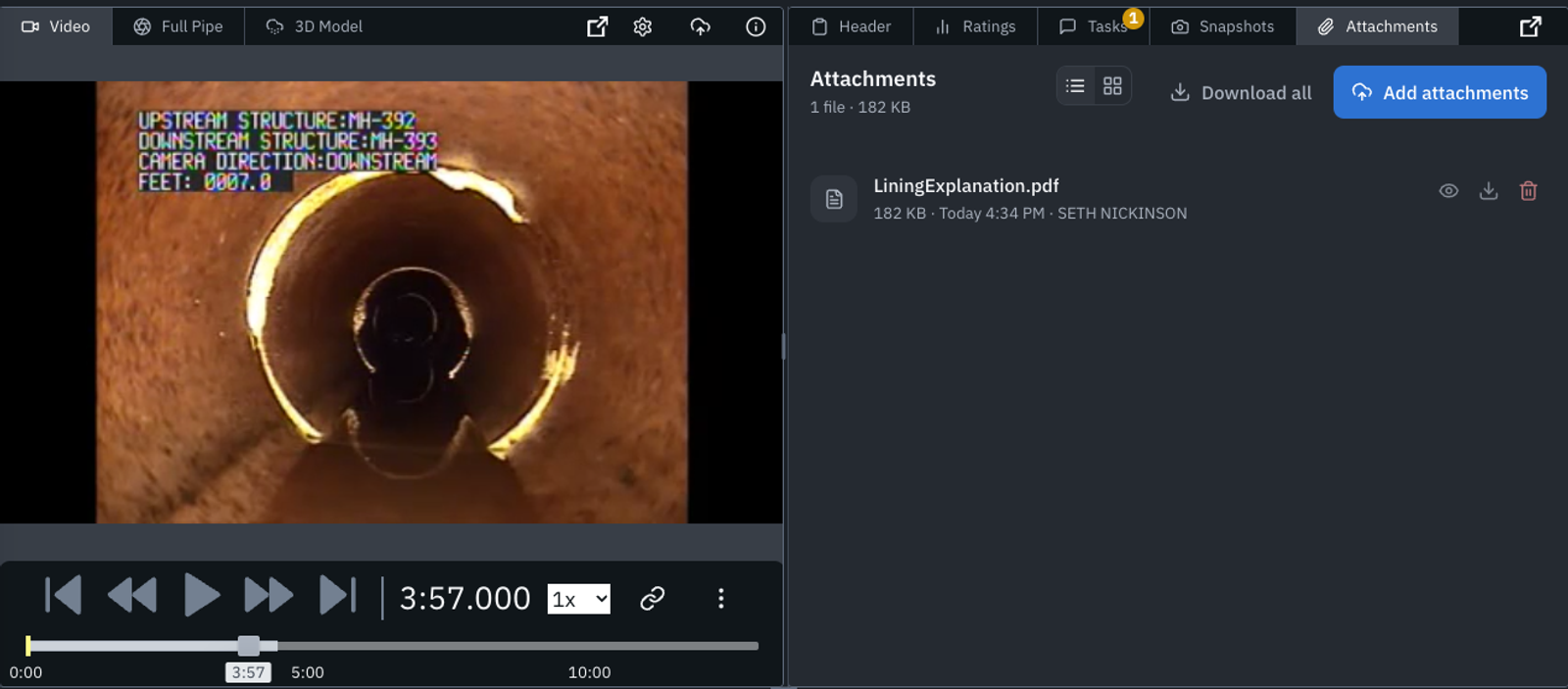
A crew photographs a broken cleanout. The city sends a permit as a PDF. A contractor fills out a field form. Those files used to live in email threads and shared drives, and someone had to match each one to the right inspection at delivery time. Attachments put them on the inspection itself.
Attach from the office or the field
Open an inspection in Review and choose the Attachments tab. Add images and PDFs, preview them without leaving Review, and download one file or all of them at once. Each attachment shows its size, file type, upload time, and who added it.
On a phone, tap Take photo to capture a picture and attach it on the spot. From the Inspection Map, choose Upload Attachments in an inspection's menu to add files without opening Review.
Bring attachments in with your NASSCO database
Upload a NASSCO database together with the photos and documents it references, and Pioneer attaches the inspection-level images and PDFs to the matching inspections. You skip the step of uploading them one inspection at a time. Imported files carry a NASSCO DB label so you can tell them from ones your team added.
Attachments go where your deliverables go
PDF and HTML reports list each inspection's attachments, and full PDF reports print the images inside that inspection's section. Shared report links include download links for each file, and export packages deliver the files with the rest of the inspection, so your client gets the photos without a separate send.
Improvements5›
- InspectionsAttach JPEG, PNG, GIF, BMP, TIFF, WebP, and HEIC images and PDFs. Images can be up to 50 MB, PDFs up to 100 MB, and one upload up to 200 MB in total. Pioneer checks sizes before the upload starts.
- InspectionsPioneer checks that each file's contents match its type before the file becomes available.
- InspectionsAn upload that fails or stalls shows the reason on its row with a Retry button, and Retry starts a fresh upload when the old session has expired.
- InspectionsPreviews open inside the Attachments tab, so the video and observation table stay on screen.
- PioneerCommand Center can list and read an inspection's attachments, and it asks you to confirm before it uploads one.